




Create and Manage Domain Groups
Create and Manage domain groups
Domain groups, also called domain security groups, let you apply different permissions and rules to different sets of domain members. This is useful when different teams or roles need different permissions, such as employees versus managers.
Your domain must be verified before you can create domain groups. Learn how to claim and verify a domain.
Who can use domain groups
Only Domain Admins can create and manage domain groups.
Where to find domain groups
- In the navigation tabs (on the left on web, on the bottom on mobile), select Workspaces.
- Select the Domains tab.
- Select the name of your domain.
- Select Groups.
How to create a domain group
- In the navigation tabs (on the left on web, on the bottom on mobile), select Workspaces.
- Select the Domains tab.
- Select the name of your domain.
- Select Groups.
- Select New Group.
How to configure a domain group
- In the navigation tabs (on the left on web, on the bottom on mobile), select Workspaces.
- Select the Domains tab.
- Select the name of your domain.
- Select Groups.
- Select the name of the group you want to manage.
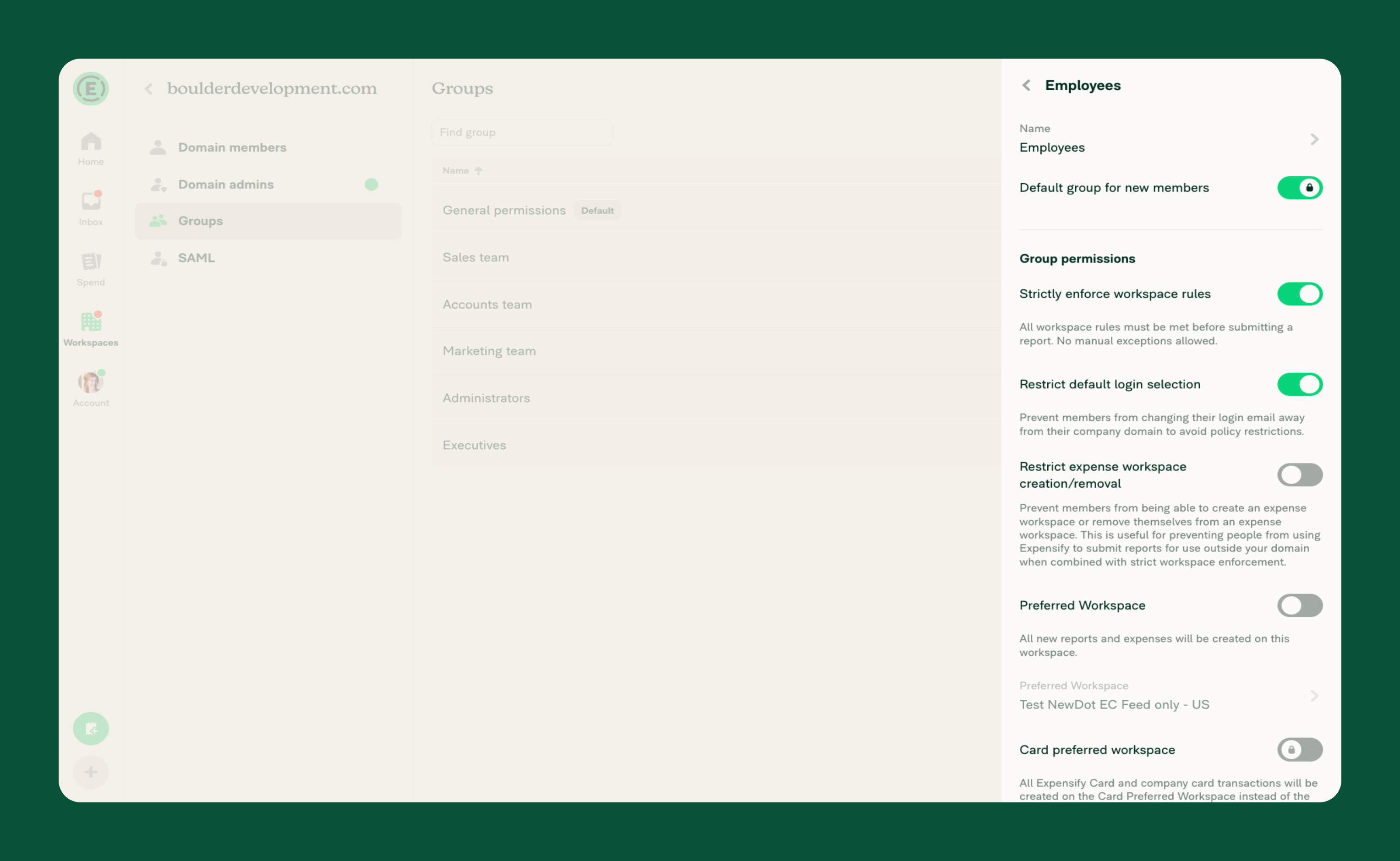
What you can control with domain group permissions
Default group for new members
Ensures all new domain members are automatically added to this group and receive the appropriate permissions when they join.
Strictly enforce workspace rules
Ensures workspace-level rules are met before a report can be submitted, helping prevent incomplete or noncompliant submissions.
Restrict default login selection
Ensures members cannot change their login email away from their company domain, helping maintain company domain restrictions.
Restrict expense workspace creation/removal
Ensures members cannot create or remove workspaces, keeping workspace management centralized within the company’s approved setup.
Preferred Workspace
Ensures a group’s expenses and reports are automatically routed to a specific workspace, reducing the need for members to manually select the appropriate workspace.
Card preferred workspace
When Preferred Workspace is set, ensures Expensify Card and company card transactions are routed to a separate workspace. This overrides Preferred Workspace for card transactions only; all other expenses and reports continue to use the group’s Preferred Workspace.
FAQ
What is the difference between a domain group and a workspace?
A domain group controls permissions and access settings at the domain level. A workspace controls expense rules, approvals, and reporting settings.
Can a member belong to more than one domain group?
No, each member can only belong to one domain group.
What happens if I enable Default group for new members?
New domain members are automatically assigned to that group, ensuring they receive the correct permissions immediately.
Does Preferred Workspace move existing expenses?
No. Preferred Workspace applies to new expenses and reports going forward.
Does Card preferred workspace apply to company cards?
Yes. Card preferred workspace applies to Expensify Card transactions and to transactions imported from a company card feed on your domain.
Why is Card preferred workspace locked?
Card preferred workspace stays locked until both of the following are true:
- The group has Preferred Workspace enabled with a workspace selected.
- Your domain has either an Expensify Card or a company card feed set up.
If both are enabled, the toggle will become available.


